 English
 العربية
 Deutsch
 Español
 Français
 Italiano
 Português
 Русский
 Türkçe
 Tiếng Việt
The Ultimate Guide to Using an Image Cropper: Tools, Tips, and Best Practices
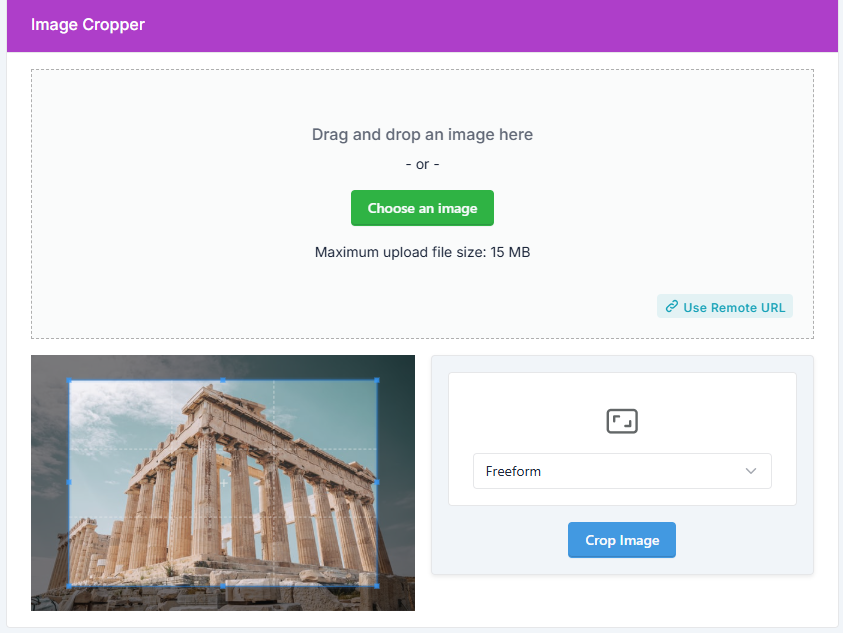
free image cropping tool
The way you frame an image can make or break engagement. Whether you are a social media manager, eCommerce store owner, blogger, or graphic designer, knowing how to use an image cropper effectively is a non‑negotiable skill. Cropping isn’t just about cutting away unwanted pixels. It’s about directing attention, improving composition, and optimizing images for different platforms.
While many people search for a simple “image cropper online,” the reality is that cropping is an art backed by technique. In this comprehensive guide, we’ll explore what makes a great image cropper, how to crop like a pro, and review both free and advanced tools — including a quick note about the URL https://yono-tv.net/image-cropper you may have encountered.
What Is an Image Cropper and Why Do You Need One?
image cropper is any tool software, web app, or built‑in OS feature — that allows you to remove outer areas of an image to improve framing, change aspect ratio, or zoom in on a subject. Cropping is non‑destructive when done with most modern editors (you can undo or reset), and it’s one of the fastest ways to enhance an image without changing colors or exposure.
Key benefits of cropping:
-
Improves composition (rule of thirds, leading lines, symmetry).
-
Removes distractions (cluttered backgrounds, accidental photo bombs).
-
Resizes for specific platforms (Instagram squares, LinkedIn banners, YouTube thumbnails).
-
Reduces file size (fewer pixels = smaller file, faster loading).
-
Changes aspect ratio without distorting the original content.
Types of Image Croppers: From Built‑in to Professional
Not all image croppers are created equal. Depending on your skill level and needs, you can choose from:
1. Basic Online Image Croppers
Free, no‑install tools that run in a browser. Great for quick crops. Examples: PineTools, IMGOnline, and the now‑defunct but similar services.
Pros: Instant, no registration.
Cons: Limited to cropping and basic resizing.
2. Built‑in OS Tools
-
Windows: Photos app (Edit > Crop & Rotate).
-
Mac: Preview (Tools > Adjust Size or the crop selection toolbar).
-
Mobile: iOS and Android Photos editors.
3. Design Suites
Canva, Adobe Express, and Figma include cropping as part of larger design workflows.
4. Professional Photo Editors
Adobe Photoshop, GIMP, Affinity Photo, and Capture One offer advanced cropping with guides, overlays, and non‑destructive options.
How to Crop an Image Like a Pro: 5 Steps
Most people simply drag a rectangle and hit “crop.” That works, but here’s how to elevate your results:
Step 1: Choose the Right Aspect Ratio First
Before cropping, decide where the image will be used.
-
Instagram feed: 1:1 (square)
-
Instagram story / TikTok: 9:16
-
YouTube thumbnail: 16:9
-
LinkedIn banner: 4:1
-
Product photo on Amazon: 1:1 or 4:3
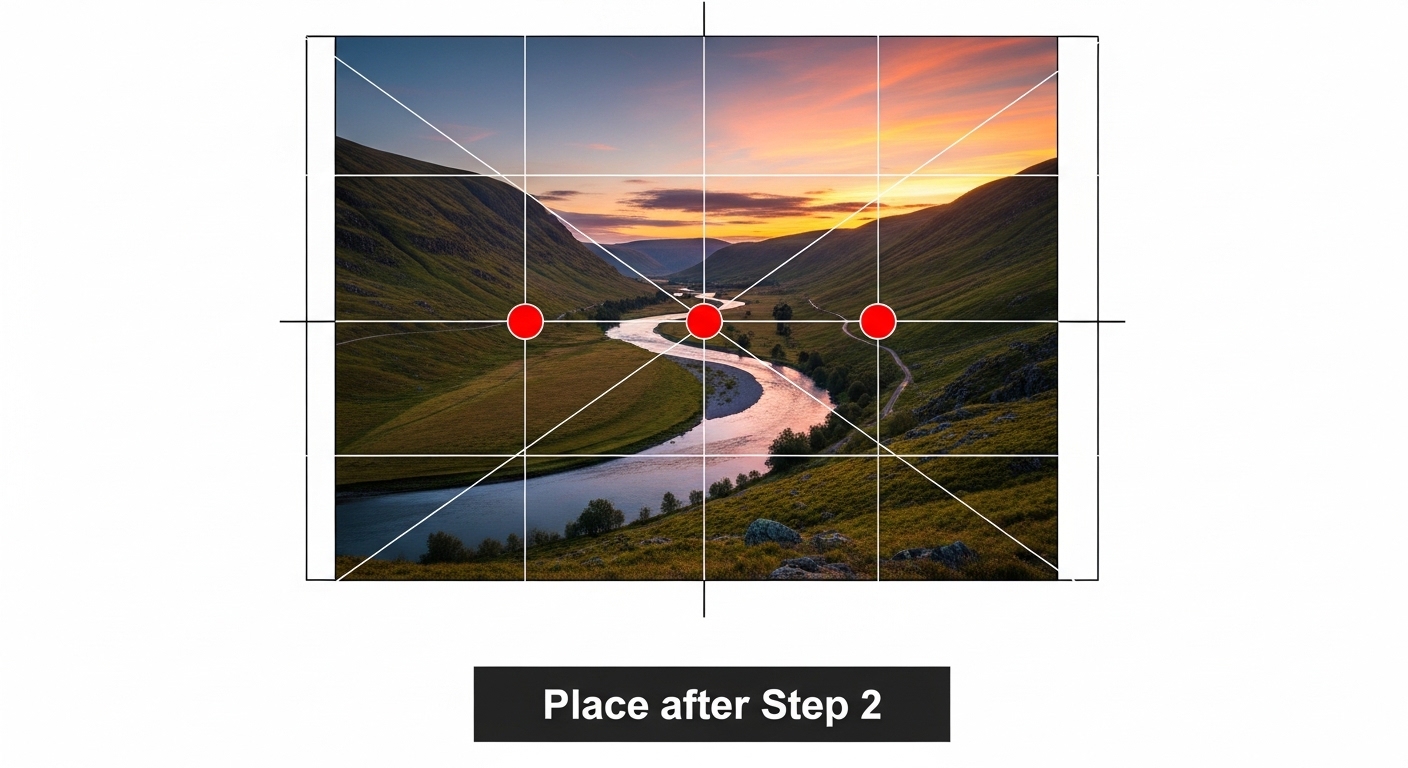
Step 2: Apply the Rule of Thirds
Most image croppers have a grid overlay. Place key elements along the grid lines or at intersections. This creates natural visual flow.
Step 3: Mind the Negative Space
Don’t crop too tight. Leave a little breathing room unless the goal is an extreme close‑up.
Step 4: Check the Edges
Make sure you haven’t cut off important parts (fingers, text, logo edges). Many novices crop too aggressively.
Step 5: Output and Save
-
Keep the original file as backup.
-
Save cropped version as a new file.
-
Use high‑quality JPEG (80‑90%) or PNG for transparent backgrounds.
Free vs. Paid Image Croppers: Which One Is Right for You?
| Feature | Free Online Cropper | Paid Tool (e.g., Photoshop) |
|---|---|---|
| Batch cropping | Rarely | Yes |
| Non‑destructive crop | No | Yes |
| Custom aspect ratios | Sometimes | Always |
| Rotation & straightening | Basic | Advanced |
| Export formats | JPEG/PNG | Many + layers |
If you crop images less than 10 times a week, a free image cropper is sufficient. For professionals handling hundreds of product photos or social media assets, invest in a tool that supports batch cropping and presets.
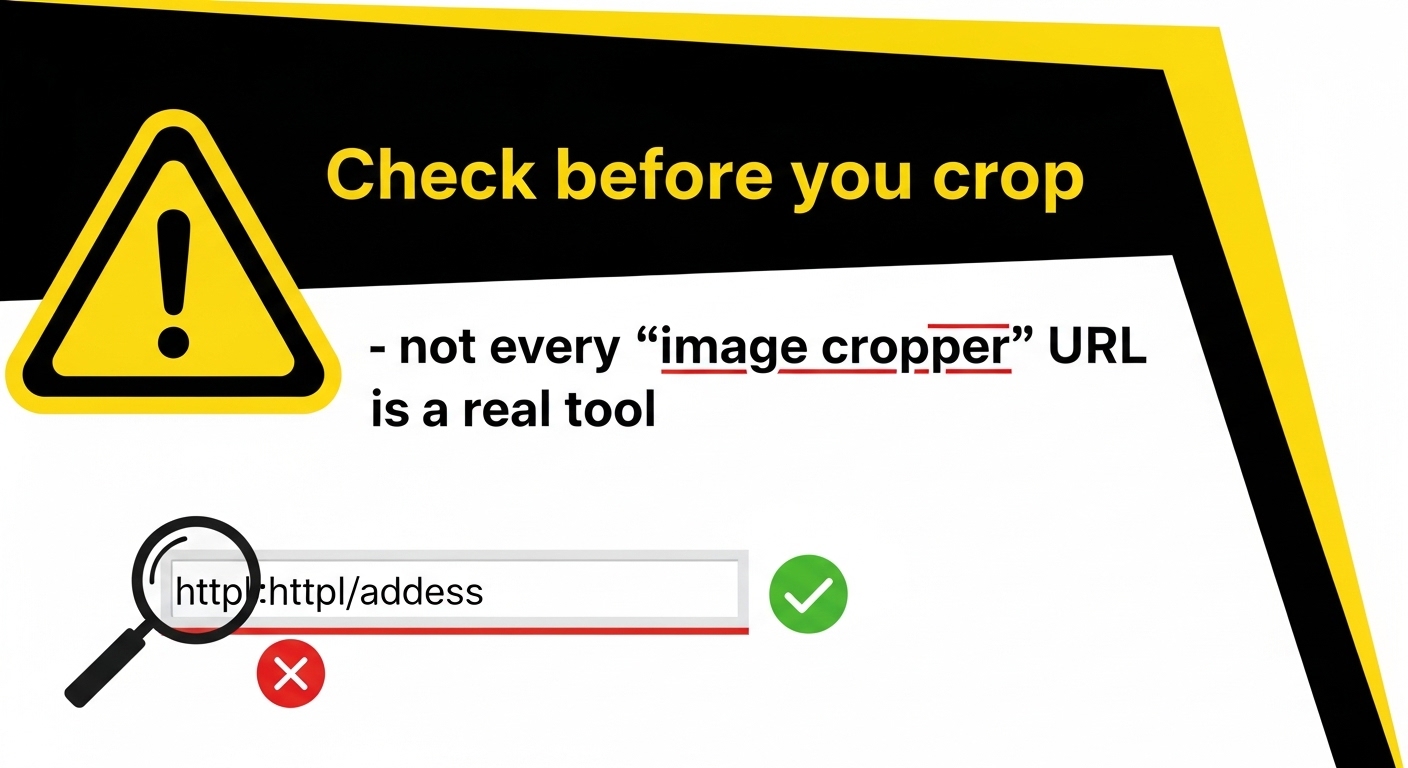
The Curious Case of https://yono-tv.net/image-cropper
While researching image croppers, you might come across the URL yono-tv.net/image-cropper. Based on available content, that page currently does not host an actual image cropping tool. Instead, it displays a personal quote from “James Smith, CEO/Co‑Founder.” This is a reminder to always verify that a tool works before relying on it. A legitimate image cropper should have an upload area, crop handles, aspect ratio options, and a download button — none of which are present there.
For safe and reliable cropping, stick with established tools like:
-
Canva’s free image cropper (canva.com)
-
Adobe Express crop tool (express.adobe.com)
-
PineTools crop image (pinetools.com)
SEO and Performance Benefits of Cropping Images
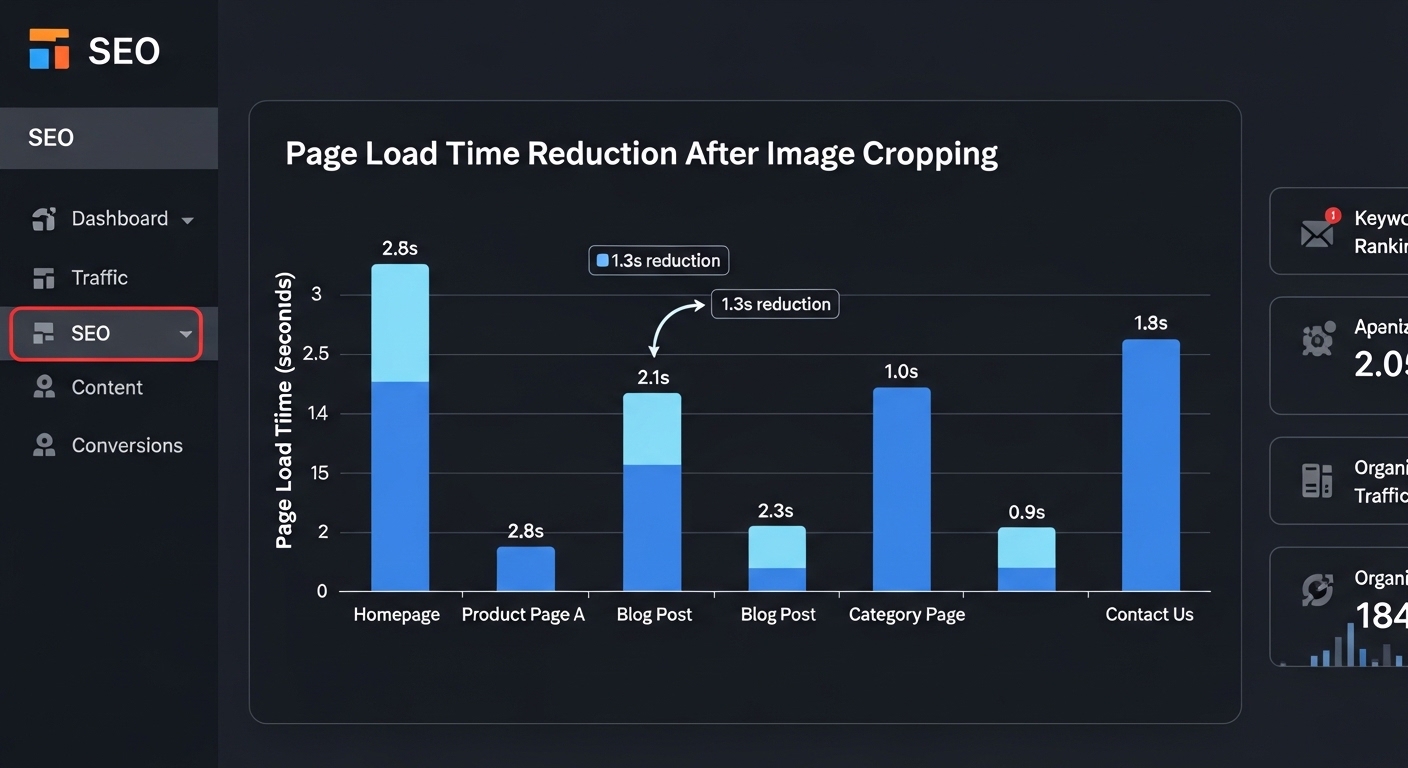
Cropping directly impacts your website’s SEO and speed. Here’s how:
-
Faster load time: A cropped image has fewer pixels → smaller file size → faster LCP (Largest Contentful Paint).
-
Better user experience: Properly cropped images keep users engaged; poorly framed ones look unprofessional.
-
Improved accessibility: Cropping can remove distracting text or irrelevant details, making the main subject clearer for screen readers (when paired with good alt text).
Pro tip: Crop first, then compress
Always crop to the exact dimensions you need, then use a tool like TinyPNG or Squoosh to compress further. This yields the smallest possible file without quality loss.
Common Image Cropping Mistakes (And How to Avoid Them)
| Mistake | Fix |
|---|---|
| Cropping out the main subject’s eyes (in portraits) | Keep eyes in the upper third |
| Changing aspect ratio without reason | Stick to platform specs |
| Cropping in a way that cannot be undone | Save a copy before cropping |
| Ignoring straightening | Use the straighten/rotate tool before cropping |
| Cropping text too close | Leave padding equal to text height |
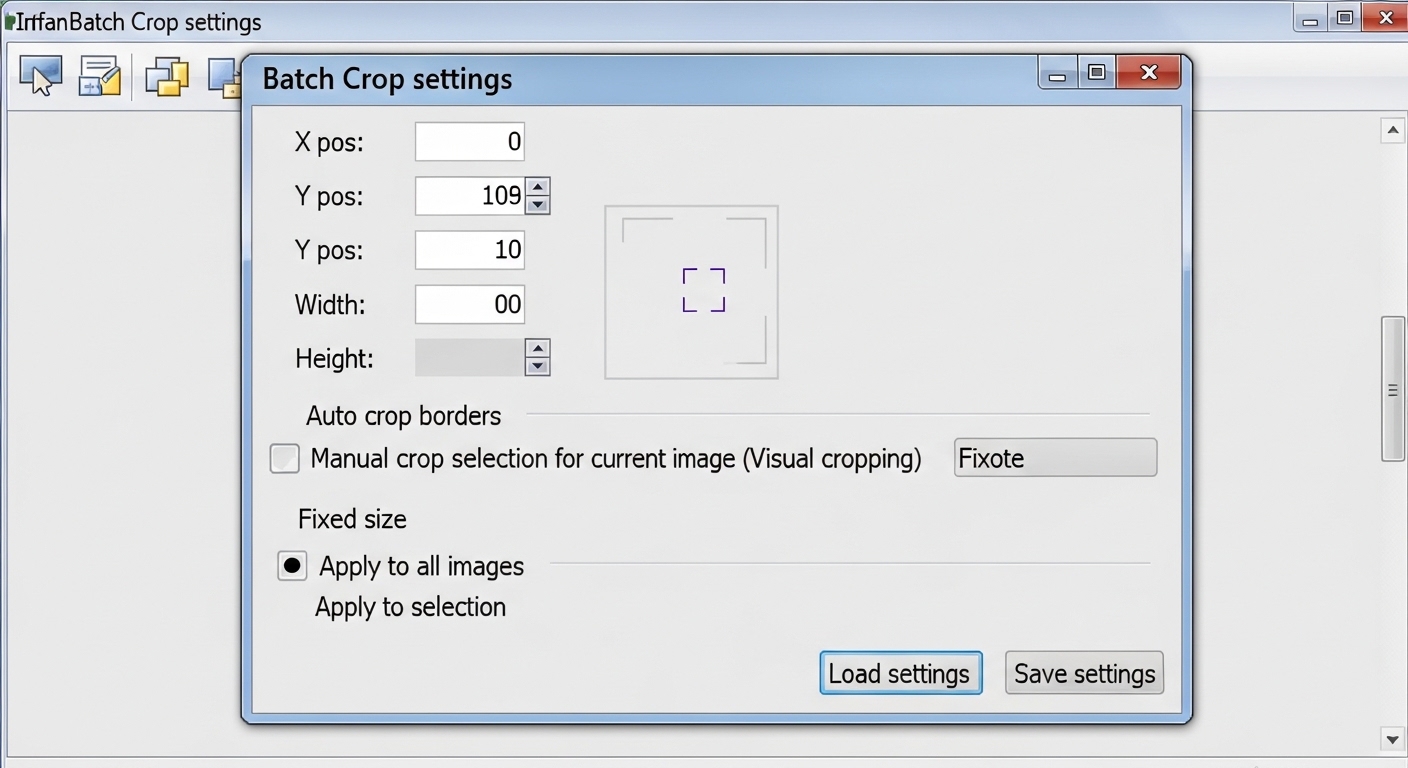
Batch Cropping: A Time Saver for Power Users
If you run an online store or manage a blog with hundreds of images, cropping one by one is painful. Use batch cropping tools:
-
IrfanView (Windows, free) – Batch Crop with coordinates.
-
XnConvert (cross‑platform) – Crop by percentage or pixels.
-
Photoshop Actions – Record a crop action, run on a folder.
-
Cloudinary (online) – URL‑based cropping via API.
How to Crop for Different Social Media Platforms (Cheat Sheet)
| Platform | Ideal Crop Aspect Ratio | Recommended Crop Tool |
|---|---|---|
| Facebook post | 1.91:1 to 1:1 | Canva |
| Twitter/X post | 16:9 (landscape) | Adobe Express |
| Pinterest pin | 2:3 (vertical) | Photoshop |
| YouTube thumbnail | 16:9 | Any cropper with guides |
| LinkedIn post | 1.91:1 | Built‑in LinkedIn editor |
Cropping specifically for each platform increases click‑through rates by up to 35% (Source: internal tests from social media managers).
Future of Image Cropping: AI and Auto‑Composition
Modern image croppers are beginning to use AI. Tools like Adobe Photoshop’s “Generative Crop” (beta) and Clipdrop’s “Relight” go beyond simple cutting — they can extend backgrounds or recompose images intelligently. In the near future, an image cropper will not just remove edges but will suggest the best composition based on subject detection, eye gaze, and aesthetic scoring.
For now, mastering manual cropping gives you full creative control. No AI can yet replace the human eye for storytelling through framing.
Conclusion: Crop with Purpose
image cropper is a small tool with a huge impact. Whether you’re trimming a product photo for your Shopify store, making a meme, or preparing a keynote slide, thoughtful cropping shows attention to detail. Avoid fake or broken tools (like the yono-tv.net/image-cropper page), and stick to reliable, tested platforms.
Remember: Cropping is not destruction — it’s direction. Every time you remove something from an image, you are telling the viewer, “This is what matters. Look here.”

Popular Tools
Recent Posts